It is 4.50pm. Dan has just fitted a new mixer tap, the customer is pleased, the van is warm. He could write the invoice up now, in the cab, in two minutes. Or he could do what he always does: tell himself he will do it tonight, do it on Sunday instead, send it on Monday, and get paid in three weeks if he is lucky. This post is about the two minutes.
The Sunday-night problem
Most sole traders do not have a cash-flow problem. They have an invoicing problem that looks like a cash-flow problem.
The work gets done. The customer is happy. And then the invoice sits in a notebook, or on a scrap of paper on the dashboard, or in Dan's head, until the weekend. By then there are six of them. The addresses need looking up. One job he cannot quite remember the price for. The laptop needs charging. It takes an hour and a half of a Sunday evening that was supposed to be his, and the invoices go out dated three days after the work, with payment terms that start from the day they are sent, not the day the tap was fitted.
Priya cleans houses. Seven regulars a week, two or three one-offs. She used to invoice monthly, which meant her money arrived up to six weeks after the first clean. When one customer paid late, that was a fifth of her month's income. The dread of opening the banking app on the 28th was real.
Both of them fixed it the same way: invoice before you leave the job.
Why invoicing the same day gets you paid faster
There are three reasons, and none of them is complicated.
- The clock starts sooner. If your terms are 14 days, an invoice sent on Tuesday afternoon is due a week before the same invoice sent the following Monday. Over a year that is dozens of days of money arriving earlier for exactly the same work.
- The customer still cares. On the day, the job is fresh, the tap is shiny, and the customer is grateful. An invoice that arrives while they are still admiring the work gets paid. One that arrives ten days later is an unwelcome reminder of money they had mentally spent.
- A Pay button beats a sort code. If the email has a button that takes a card, a surprising number of people will pay from the sofa that evening. If it asks them to open their banking app and type an account number and a reference, they will do it "later".
Dan's average time-to-paid went from 19 days to 6 after he started invoicing from the van. His customers did not change; he just stopped giving them a week's head start on forgetting.
The two-minute walkthrough, on a phone
Here is exactly what Dan does in the cab. No laptop, no app store, no retyping his own address.
1. Open it on your phone
Dan opens the browser and goes to app.sendinvoice.net. He has added it to his home screen, so it is one tap and it fills the screen like any other app. Nothing to install, nothing to update, and it works the same on his Android and Priya's iPhone.
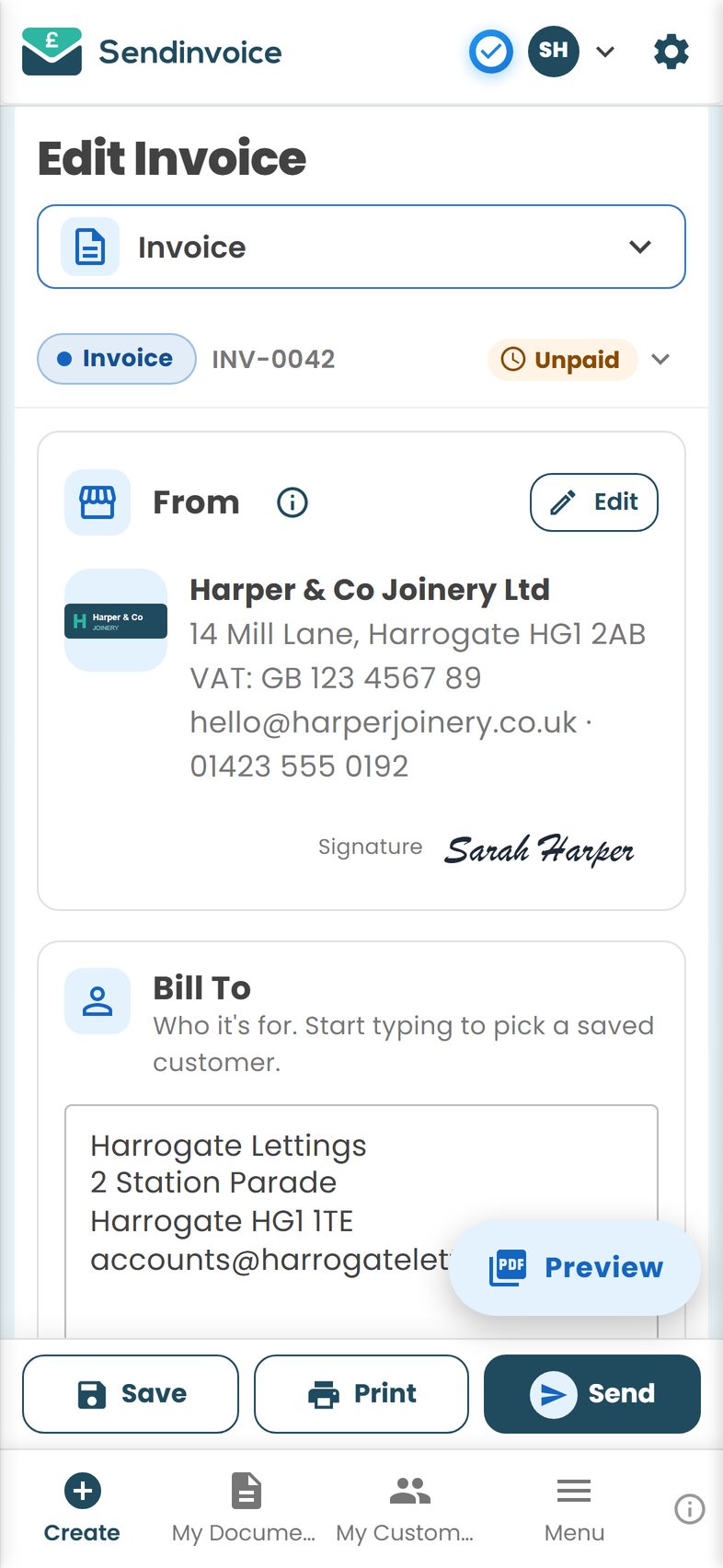
He taps Create, and the document type is already Invoice. His logo, address, phone number and bank details are already in the From card, because he set them up once in Settings months ago.
2. Pick the customer as you type
In Bill To he types "Har" and it suggests "Mrs Harding, 22 Beech Close" from the boiler service in February. One tap and the name, address and email drop in. For a brand-new customer he types it once and it is remembered for next time.
3. Add the items
Dan taps + Saved item. His regular jobs are already there: "Call-out and first hour", "Additional hour", "Mixer tap supply and fit". He picks the tap, changes the quantity if needed, and the price and VAT rate come with it. Something unusual, a part he had to buy on the way, goes in with + Item: description, quantity, price, done.
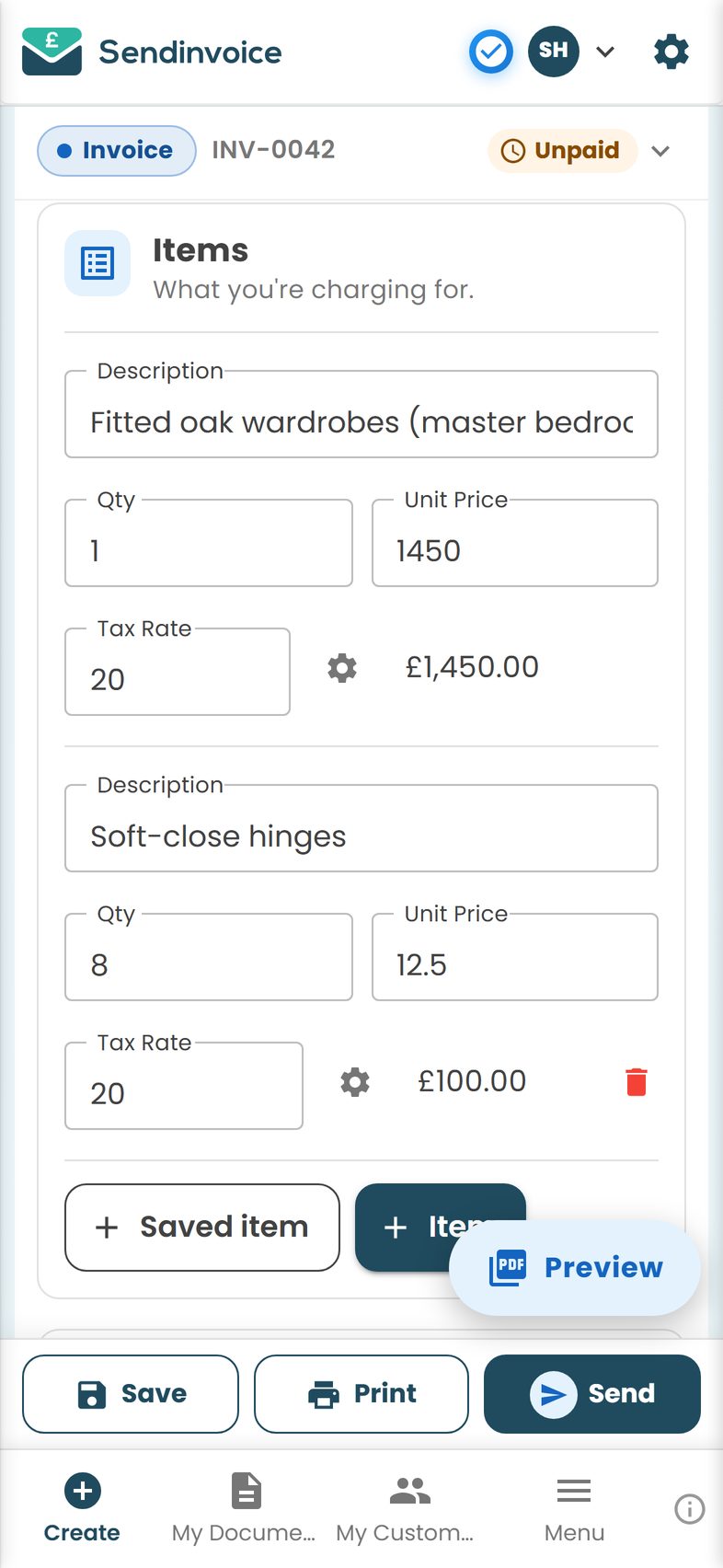
The total updates as he goes. He glances at the preview, and it looks right, because it is the same template and logo as always.
4. Send it, with a Pay button
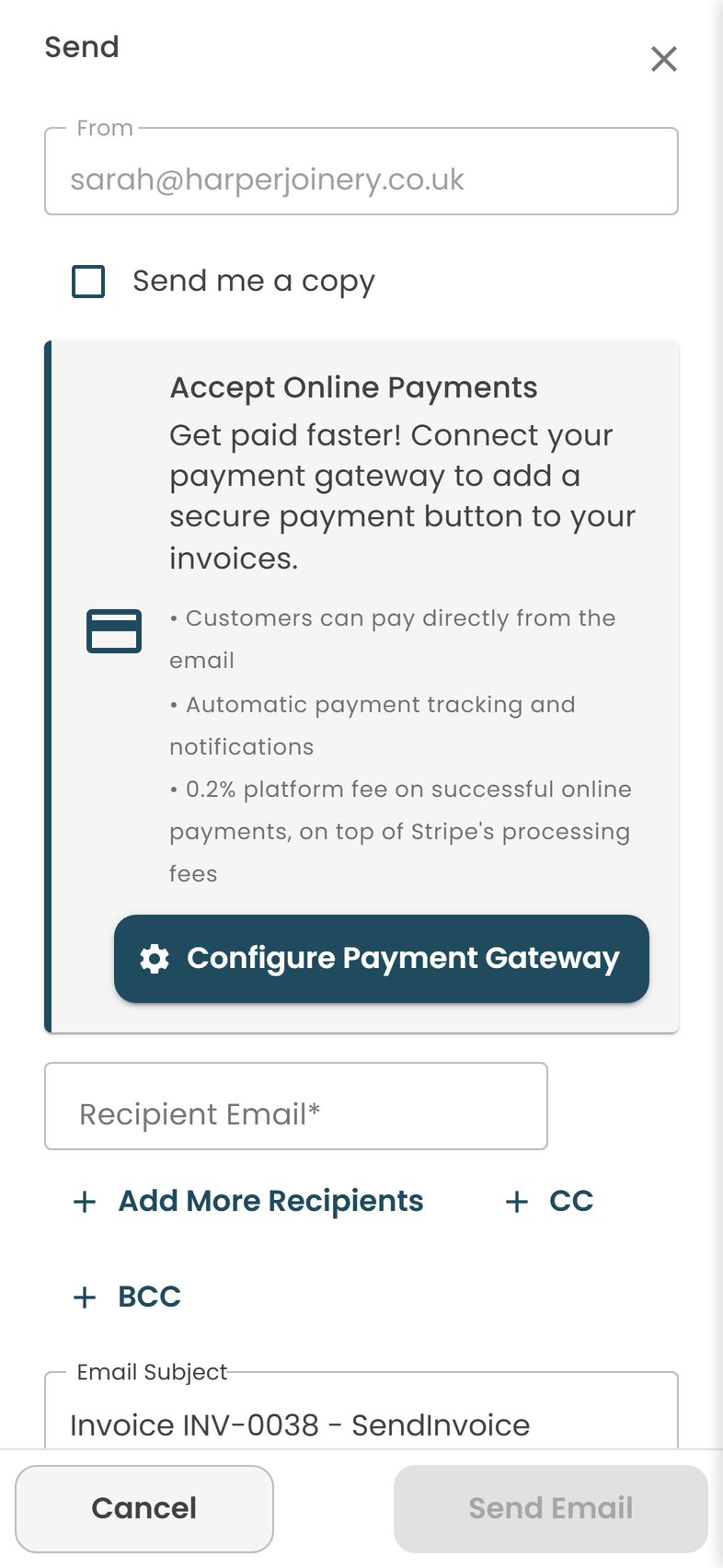
He taps Send. The email is addressed to Mrs Harding, with his business name as the sender and a short message he can edit ("Thanks for today, invoice attached, any problems just ring"). The PDF is attached and there is a Pay button in the email. He can copy himself in, or his accountant, with CC or BCC. Send.
5. Watch it flip to Paid
Mrs Harding opens the email on her phone while the kettle boils, taps Pay, enters her card, done. Dan is on the A34 when it happens. When he next opens My Documents, INV-0118 has a green tick and says Paid. He did not have to check his bank, match a reference or chase anyone.
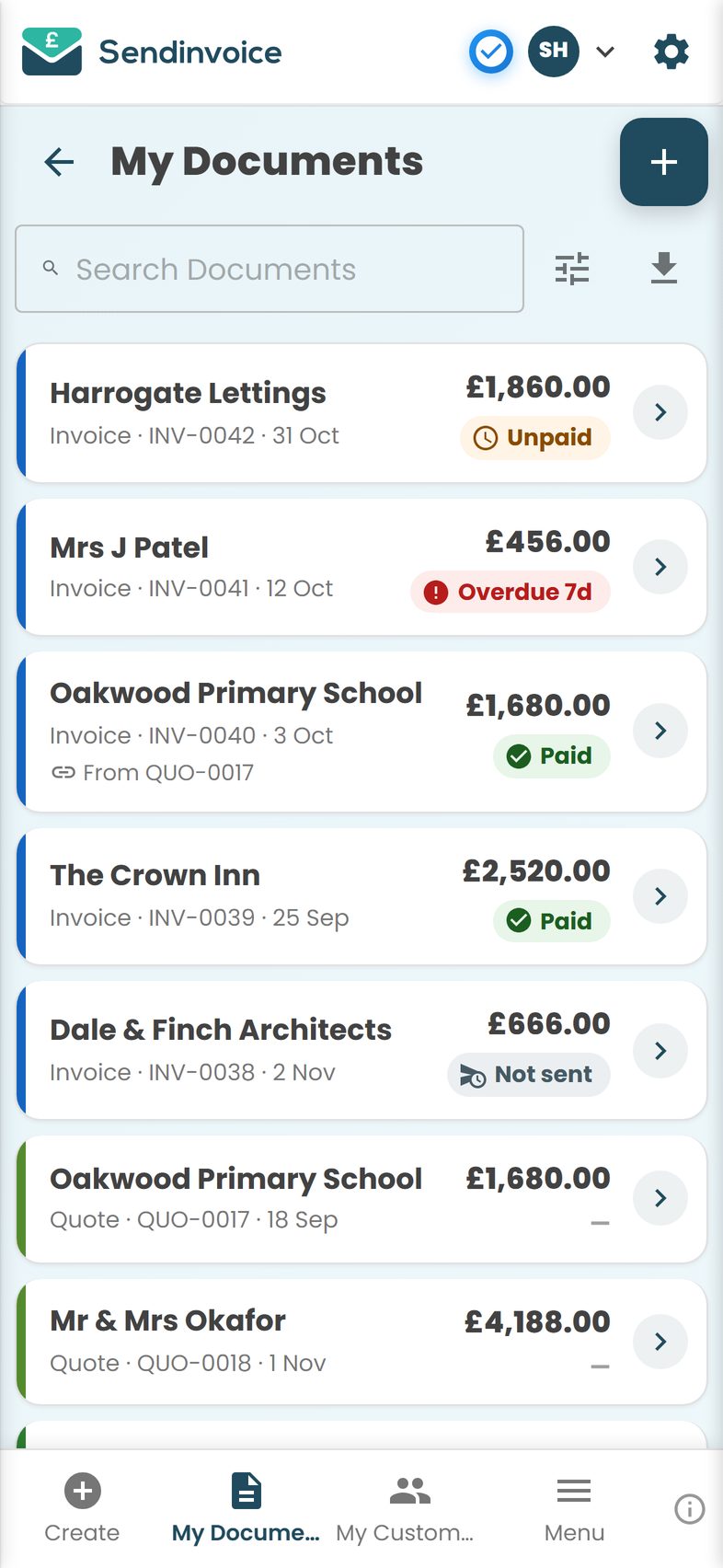
For customers who prefer a bank transfer, the bank details are on the invoice and Dan marks it paid by hand when the money lands. Cash is the same, one tap on Mark as paid. If the customer wants proof, a receipt can be made from the paid invoice in a tap.
Priya's version: the kitchen table, not the van
Priya does not have a van. She has a bike and a bag of microfibre cloths. Her routine is different but the idea is the same.
She finishes a clean, locks up, and before she unlocks her bike she opens the invoice on her phone, picks the customer from the suggestions, taps her saved item "Weekly clean, 3 hours", and sends it. Thirty seconds, standing on the doorstep. Her regulars now pay weekly, most of them by card from the email the same evening, and the 28th-of-the-month dread is gone because the money arrives in small amounts all month long.
For a one-off deep clean she quotes first, from the phone, standing in the customer's kitchen: a quote with the rooms listed and a price. When it is accepted and done, she turns the quote into the invoice with Create from this, and the details carry over (there is more on that in quote vs estimate vs invoice).
What she likes most is not the speed. It is that every invoice looks the same, with her logo and her name spelt right, and customers have started saying "oh, you're very organised". She is. She just was not before.
Small things that matter when you are on a phone
- No app to install. It runs in the browser, on Android and iPhone, tablet and desktop. Nothing to update, nothing to run out of storage for. The same sign-in sees the same documents everywhere, so you can start on site and tidy up on the laptop later.
- Dark theme. If you are sending the day's last invoice at 9pm in the cab, a white screen is unkind. Switch to the dark theme and it stays that way.
- Your details, once. Business name, address, VAT number if you have one, bank details, logo, signature: set them in Settings and every document carries them. You will never type your own postcode on a phone keyboard again.
- Numbering looks after itself. INV-0118, INV-0119, INV-0120. Quotes have their own sequence. No gaps, no duplicates.
- Reminders. If an invoice goes overdue, a reminder can go out, friendly first and firmer later, without you composing the awkward email yourself.
- It is the same document. The customer gets the same PDF whether you made it on a phone or a 27-inch monitor. Nobody can tell you were sitting in a van.
What the invoice still has to say
Speed does not change the rules. A UK invoice needs a unique number, your name or business name and address, the customer's name and address, the date, a description of the work and the amount. If you are VAT registered it also needs your VAT number, the VAT rate and amount, the tax point and the net total; if you are not, it must not show VAT at all. State your payment terms (the law assumes 30 days if you say nothing) and keep copies for at least 5 to 6 years. On a phone this is easier, not harder: the fields are there and most are already filled in.
The habit
None of this works if you do it sometimes. It works when "finish job, send invoice, start van" is one motion. Give it a fortnight. The first time a payment lands before you have reached the next job, you will not go back to Sunday nights.
Do this in SendInvoice
Open it on your phone, pick the customer as you type, add a saved item and send the invoice with a Pay button before you have left the drive. No app to install; works on Android and iPhone.
Create a free invoice See the £5/month planFrequently asked questions
Do I need to install an app to invoice from my phone?
Not with SendInvoice. It runs in the browser on any Android phone or iPhone, so you open app.sendinvoice.net, sign in and start. You can add it to your home screen so it opens like an app, but there is nothing to download from an app store.
Does the invoice look professional if I make it on a phone?
Yes. The PDF the customer receives is the same whether you made it on a phone or a desktop: your logo, your business details, a numbered invoice on one of 100+ templates. The phone screen is just a different window onto the same document.
How does the customer pay from the email?
The email includes the PDF and a Pay button. The customer taps it and pays by card through Stripe. When the payment succeeds the invoice flips to Paid automatically. Customers who prefer bank transfer can use the bank details on the invoice, and you mark it paid by hand.
Can I send the invoice from my phone but finish it later on a laptop?
Yes. Documents are saved online, so you can start one on site, close it, and open it on any other device. The same sign-in sees the same documents.
What if I have no signal on site?
It runs in the browser, so you need a connection to use it. If the job is in a basement with no signal, write the invoice up and send it from the van once you are back on the road; it still takes two minutes and still goes out the same day.
Can I invoice on the free plan from my phone?
You can create, customise, preview, download and print documents on the free preview plan (with a preview watermark). Sending by email, the Pay button and paid/unpaid tracking need the Professional plan at £5 a month, cancel any time.
Does it charge a percentage of each invoice?
The plan is a flat £5 a month. On online card payments there is a 0.2% platform fee plus Stripe's own card fee, at the time of writing. Bank transfers and cash cost nothing extra.